Blackberry Blend Kirim Pesan BBM Lewat PC dan Tablet

. 25 September 2014
0 Comments

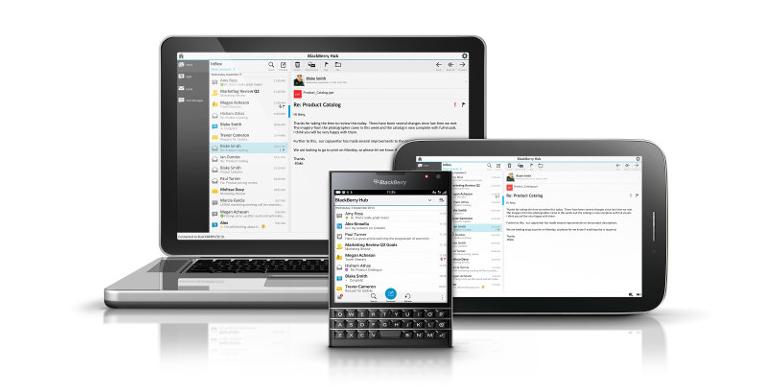
LONDON, Bersama dengan Passport, BlackBerry turut memperkenalkan layanan baru bernama BlackBerry Blend. Layanan berbentuk aplikasi yang bisa diunduh secara gratis ini mengintegrasikan ponsel BlackBerry dengan aneka perangkat lain, termasuk tablet Android, iPad, serta komputer berbasis Windows dan Mac. 

Pengguna BlackBerry bisa memanfaatkan Blend untuk membaca dan membalas pesan singkat BlackBerry Messenger (BBM) serta SMS yang diterima lewat ponsel BlackBerry. Demikian pula dengan daftar kontak, email, dan jadwal di kalender ponsel, semuanya bisa diakses dari gadget lain atau PC. 

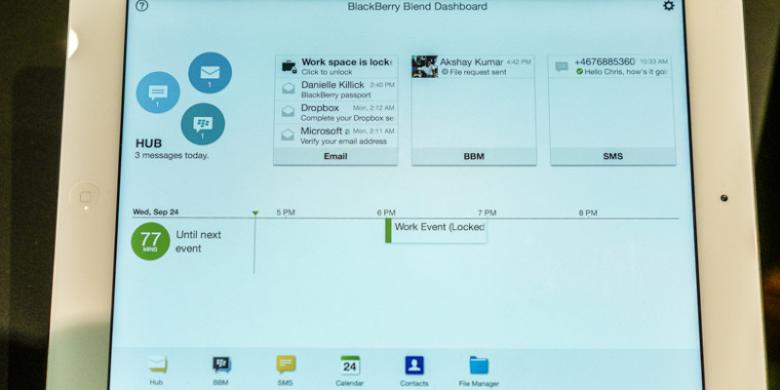
Demonstrasi penggunaan Blend di iPad.

“Dengan Blend, Anda mendapatkan informasi paling kredibel secara real time, tak peduli perangkat apapun yang Anda pakai. Kami percaya Blend akan mengubah cara Anda bekerja di berbagai macam perangkat,” ujar Direktur Handheld Software BlackBerry, Michael Clewley, dalam acara peluncuran BlackBerry passport di London, Inggris, Rabu (24/9/2014). 

BlackBerry Blend bisa digunakan di komputer yang menjalankan Windows 7/ Mac OS X 10.7 atau yang lebih baru, serta tablet Android 4.4 Kitkat dan iPad dengan iOS 7 ke atas. 

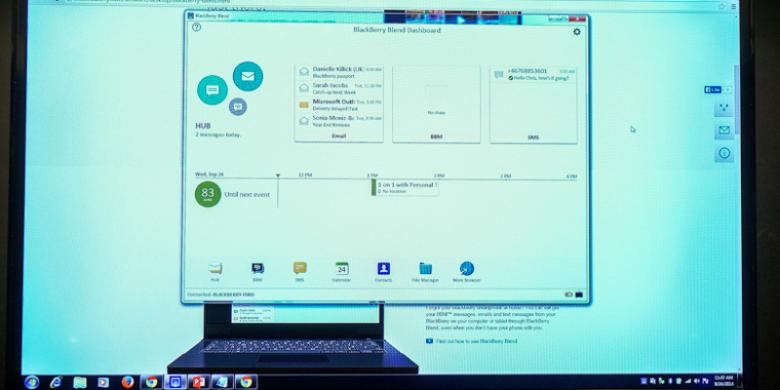
Versi Blend untuk komputer sudah bisa diunduh di tautan berikut, sementara versi untuk tablet telah tersedia di toko aplikasi masing-masing platform. Ke depannya, pihak BlackBerry berencana menambahkan fitur baru ke dalam Blend, seperti kemampuan menjawab panggilan telepon dari komputer. Demonstrasi menjalankan Blend di PC dengan sistem operasi Windows. 

Source: Kompas Techno

Read More..

Toshiba Satellite C40-a Checking Media Fail

. 11 June 2014
0 Comments

Kali ini laptop merek Toshiba tidak bisa booting melalui CD/DVD dan flash disk. Tepatnya Toshiba Satelite C40-A, dengan pesan “Media Check: Fail“, mungkin juga ditemukan hal yang sama pada laptop merek Toshiba tipe lainnya. Setelah Googling ada salah satu solusi yang mudah, yaitu dengan mematikan fitur Secure Boot dan mengganti Boot Mode menjadi CSM Boot, berikut Langkahnya.

  1. Masuk ke BIOS dengan meneken tombol F2.
  2. Pilih tab Security, pada pilihan Secure Boot, ubah menjadi disable.
  3. Kemudian pilih tab Advanced, pilih System Configuration, pilih Boot Mode, ubah dari UEFI Boot menjadi CSM Boot.
  4. Keluar dan simpan konfigurasi dengan menekan F10, Yes.
  5. Silahkan coba booting.


    SeMoga Membantu

Read More..

USB Tray Icon Missing / recover lost or missing system tray icon

. 14 May 2013
0 Comments

1. Back up the Registry by creating a restore point.
2. Go to Start > Run (or Windows-key + R), type in regedit and hit OK.
3. Navigate to the key HKEY_CURRENT_USER\Software\Software\Microsoft\Windows\CurrentVersion\Explorer\TrayNotify.
4. Delete the values IconStreams and PastIconsStream.
5. Open up the Task Manager (Ctrl + Shift + Esc), go to the Processes tab, select explorer.exe and click End Process.
6. Open the Applications tab and click New Task at the bottom-right of the window.
7. In the message box that pops up type in explorer.exe and hit OK.
8. Explorer.exe will reload, and the missing icons should now be back in the system-tray where they belong.
9. Then if the volume bar isn't there, go to taskbar properties (where the volume was gray) and simply tick the box.

this should work, did for me!

Read More..

Flashdisk Tidak Terbaca di Komputer | USB Best Storage

. 09 August 2011
1 Comments


Flashdisk Tidak Terbaca di Komputer | USB Best Storage – Pernahkah anda mengalami kerusakan USB Flashdisk ? Seperti flashdisk terdeteksi namun ketika di klik drive flashdisk tersebut muncul tulisan Insert Disk (Please Insert a Disk Into Drive x :) seperti gambar berikut.


Kejadian ini menimpa saya ketika beberapa waktu yang lalu dan sedikit pusing untuk memperbaikinya. Masalahnya adalah flashdisk tersebut tidak bermasalah dengan device/driver dan timbul drive flashdisk tersebut di My Computer. Namun ketika di klik akan timbul pesan Please Insert a Disk seperti gambar di atas.

Dengan bermodalkan searching di google maka di dapatkan beberapa alternatif yaitu :

Memformat hardisk -> Klik Kanan Drive Flashdisk dan Format atau bisa juga lewat Command Prompt dengan perintah : format [driveflasdisk]:

Cara ini tidak berhasil karena drive Flashdisk tidak terdeteksi.
Partisi ulang drive Flashdisk -> klik kanan drive flashdisk, klik manage.

Kemudian klik kanan removable drive partition flashdisk tersebut dan klik Change Drive Letter and Paths.

Cara ini juga tidak berhasil

Pernah juga coba dengan software tool usb untuk HP (nama toolnya lupa) namun tak jua membuahkan hasil dan pesan error juga tetap muncul di flashd
isk.

Akhirnya dapat juga software untuk memperbaiki flashdisk rusak tersebut, nama softwarenya Super Stick Recovery ToolsV1.0.2.19.


Cara kerjanya juga cukup mudah

download softwarenya Super Stick Recovery ToolsV1.0.2.19
Colokkan flashdisk
Jalankan software maka akan lansung mendeteksi device driver usb flashdisk
Selanjutnya klik Update.
Tunggu proses penggantian drivernya selesai dan flashdisk bisa digunakan kembali.

Notes : Tool ini pernah saya coba untuk 2 jenis flashdisk yaitu Kingston dan USB best Storage. Untuk jenis yang lain belum dicoba. Tool ini juga sepertinya tidak mampu untuk memperbaiki flashdisk yang mati total.

Read More..

How to use the Out of Office Assistant in Outlook

. 10 March 2011
0 Comments

This article describes how to use the Out of Office Assistant in Microsoft Outlook.

Note that the Out of Office Assistant is only available if you have the Microsoft Exchange Server service in your profile.

This section covers the following topics:

* How to turn on the Out of Office Assistant
* How to create a rule
* How to delete a rule
* How to edit a rule
* How to change the order in which rules are applied
* How to turn a rule on or off
* How rules are applied

How to Turn On the Out of Office Assistant
For Microsoft Outlook 2010:

1. Click the File tab, and then click the Info tab in the menu.
2. Click Automatic Replies (out of office).
3. In the Out of Office Assistant dialog box, select the Send Automatic Replies check box.
4. If you want to specify a set time and date range, select the Only send during this time range check box, set the Start time, and then set the End time.
5. In the Inside my organization tab, type the message that you want to send within your organization, and in the Outside my organization tab, type the message that you want to send outside your organization.
6. Click Apply.

For Microsoft Office Outlook 2007 and earlier versions:

1. On the Tools menu, click Out of Office Assistant.
2. In the Out of Office Assistant dialog box, click I am currently Out of the Office.
3. In the AutoReply only once to each sender with the following text box, type the message that you want to send while you are out of the office.

How to Create a Rule
For Outlook 2010:

1. Click the File tab, and then click the Info tab in the menu.
2. Click Automatic Replies (out of office).
3. In the Out of Office Assistant dialog box, click Rules, and then click Add Rules.
4. In the When a message arrives that meets the following conditions box, specify the conditions that you want the message to meet.
5. Select the Do not process subsequent rules check box to specify that this rule must be the last one that is applied.
6. To specify more conditions, click Advanced, select the options that you want, and then clickOK.
7. In the Perform these actions box, select the options that you want.

For Outlook 2007 and earlier verions:

1. On the Tools menu, click Out of Office Assistant.
2. In the Out of Office Assistant dialog box, click Add Rule.
3. In the When a message arrives that meets the following conditions box, specify the conditions that you want the message to meet.
4. Click to select the Do not process subsequent rules check box to specify that this rule must be the last one applied.
5. To specify more conditions, click Advanced, select the options that you want, and then click OK.
6. In the Perform these actions box, select the options that you want.

How to Delete a Rule
For Outlook 2010:

1. Click the File tab, and then click the Info tab in the menu.
2. Click Automatic Replies (out of office).
3. In the Out of Office Assistant dialog box, click Rules, and then click Add Rules.
4. In the These rules will be applied to incoming messages while you are out of the office list, click the rule that you want to delete.
5. Click Delete Rule, and then click Yes.

For Outlook 2007 or earlier versions:

1. On the Tools menu, click Out of Office Assistant.
2. In the These rules will be applied to incoming messages while you are out of the office box, click the rule that you want to delete.
3. Click Delete Rule, and then click Yes.

How to Edit a Rule
For Outlook 2010:

1. Click the File tab, and then click the Info tab in the menu.
2. Click Automatic Replies (out of office).
3. In the Out of Office Assistant dialog box, click Rules.
4. In the These rules will be applied to incoming messages while you are out of the office list, click the rule that you want to edit.
5. Click Edit Rule, and then click Yes.
6. Make changes to the conditions and actions for the rule.

For Outlook 2007 and earlier version:

1. On the Tools menu, click Out of Office Assistant.
2. In the These rules will be applied to incoming messages while you are out of the office box, click the rule that you want to edit, and then click Edit Rule.
3. Make changes to the conditions and actions for the rule.

How to Change the Order in Which Rules are Applied
For Outlook 2010:

1. Click File tab, and then click the Info tab in the menu.
2. Click Automatic Replies (out of office).
3. In the Out of Office Assistant dialog box, click Rules.
4. In the These rules will be applied to incoming messages while you are out of the office list, click the rule that you want to move up or down in the list.
5. Click Move Up or Move Down.

For Outlook 2007 and earlier versions:

1. On the Tools menu, click Out of Office Assistant.
2. In the These rules will be applied to incoming messages while you are out of the office box, click the rule that you want to move up or down in the list.
3. Click Move Up or Move Down.

How to Turn a Rule On or Off
For Outlook 2010:

1. Click the File tab, and then click the Info tab in the menu.
2. Click Automatic Replies (out of office).
3. In the Out of Office Assistant dialog box, click Rules.
4. In the These rules will be applied to incoming messages while you are out of the office list, click to select or click to clear the check box next to the rule that you want to turn on or off.

For Outlook 2007 and earlier versions:

1. On the Tools menu, click Out of Office Assistant.
2. In the These rules will be applied to incoming messages while you are out of the office box, click to select or click to clear the check box next to the rule that you want to turn on or off.

How Rules Are Applied
Rules are applied in the order in which they appear, going from top to bottom, in the list of rules in the Out of Office Assistant box.

If you select more than one condition in the Edit Rule box, only messages that meet all of the conditions have the rule applied to them. For example, if you specify "Bob Green" as the sender (condition), and "Marketing Meeting" (condition) in the Subject box, the rule only applies to messages that meet both conditions.

If you set multiple conditions in one rule, messages that meet any of the conditions in the rule are found. For example, if you specify "Bob Green; Jeffrey Weems," in the From box, the rule applies to messages from either Bob Green or Jeffrey Weems.

To specify that a rule must be the last one applied, click to select the Do not process subsequent rules check box (in the Add Rule or Edit Rule dialog box).

When you specify an action for a rule and the action cannot be performed, an error message appears with an "X" next to the rule. To fix the error, click Edit Rule, and then make any necessary changes.

Read More..

Make Out of Office Assistant in Outlook Express

.
0 Comments

The Out Of Office Assistant is not available in Outlook Express. You may be able to duplicate its functionality by applying message rules.

The Out of Office Assistant is a feature of Microsoft Outlook that enables you to automatically reply to e-mail messages from people who send you mail when you are not available. Outlook Express does not have this functionality. To simulate the functionality of an Out of Office Assistant in Outlook Express you must first create an out of office message, and then an out of office rule. Additionally, it is important to remember that this function only works while Outlook Express is running and logged on to the e-mail server.
How to Create an Out of Office Message

1. Start Outlook Express.
2. Click File, New, and then click Mail Message.
3. Type the message that you want to use as an out of office message, click File, and then click Save As.
4. Enter a name for the mail message in the File name box, select the folder that you want to save the mail message in, and then click Save.
5. Close the message and proceed to the steps to create the out of office rule.

How to Create an Out of Office Rule

1. Start Outlook Express.
2. On the Tools menu, point to Message Rules, and then click Mail.
3. Click New.
4. In the Select the Conditions for your rule dialog box, click to select the For All Messages check box.
5. In the Select the Actions for your rule dialog box, click to select the Reply with Message check box.
6. In the Rule Description dialog box, click Message.
7. In the Open dialog box, locate the file that you named in the "How to Create an Out of Office Message" section, click the file, and then click Open.
8. In the Name of the Rule dialog box, name the rule, and then click OK.
9. Click OK to close the Message Rules dialog box.

To test your rule, send yourself a message from a different e-mail account. Rules are not applied to mail that you send to yourself in the same e-mail account when you use Outlook Express.

Read More..

Menampilkan kembali Folder Option yang hilang di Windows Explorer

. 24 February 2011
0 Comments

Folder Option berguna untuk konfigurasi folder termasuk menampilkan/menyembunyikan hidden folder.
Byasana folder option tiba2 hilang bisa disebabkan oleh virus ato tidak sengaja salah setting,
Untuk menampilkan kembali Folder Option, bisa diikuti langkah2 berikut:

1. Tutuplah semua program yang sedang dijalankan, agar tidak mengganggu proses group policy.

2. Klik Start kemudian run, atau bisa juga tekan tombol windows+R, tulis gpedit.msc lalu enter.

3. Setelah muncul jendela group policy pilih user configuration –> administrative templates -> windows component.

4. Pada Windows Component, buka folder Windows Explorer, double klik pada “Remove the folder options menu item from the tool menu”

5. Berilah tanda ceklist pada disable atau not configure, kemudian klik apply.

Sekarang periksa kembali windows explorer, cek pada menu tool, dan item folder options yang hilang akan muncul lagi.

atau

Langkah 1
Bersihkan virus pada komputer anda dengan antivirus yang tidak bervirus

setelah komputer anda bersih dari virus ikuti langka 2

Langkah 2
masuk regedit dengan cara klik start – run dan ketik regedit
akhiri dengan tekan Enter selanjutnya tekan pada keyboard Ctrl-F atau dari menu klik Edit – Find
maka akan muncul tabel pencarian/find berikut :

Langkah 3

ketikkan kata yang akan dicari yaitu NoFolderOptions (bisa diketik dengan hurus kecil semua) pada Find What dan klik Find Next cari data sampai menemukan data seperti berikut :

Langkah 4

Klik kanan pada NoFolderOptions dan pilih Modify kemudian ganti value data 1 menjadi 0 dan tekan OK sehingga datanya akan berubah menjadi seperti gambar berikut :

Langkah 5

Tutup regedit dan coba jalankan Windows Explorer, bila belum muncul juga Folder Options maka restart komputer anda dan coba sekali lagi buka Folder Options pada Windows Explorer.

Read More..

My Documents open at startup

.
0 Comments

1.Start>Run>Regedit>ok

2.Now navigate to the following key:- HKEY_ LOCAL_ MACHINE\SOFTWARE\Microsoft\Windows NT\CurrentVersion\Winlogon

3.Look down the list in the Right Hand pane,scroll down to the value Userinit This value should read: C:\WINDOWS\system32\userinit.exe, (The comma at the end must also be there)

4.If the value is different from that mentioned above then Right Click on the Userinit value and, from the drop down menu, select Modify. Type in the value C:\WINDOWS\system32\userinit.exe,in the Modify dialogue box click OK

5.Exit the Registry.Restart your computer.

Read More..

Task Manager has been disabled by your administrator

.
0 Comments

Coba langkah berikut untuk menanggulangi masalah tersebut.

1. Klik Start - Run
2. Lalu ketik "REG add HKCU\Software\Microsoft\Windows\CurrentVersion\Policies\System /v DisableTaskMgr /t REG_DWORD /d 0 /f"
3. Tanpa tanda kutip tentunya, dan kalau takut salah mending copy paste saja.
4. Klik OK

Kalau anda tak suka cara tersebut, bisa saja anda memakai cara berikut.

1. Klik Start - Run
2. Ketik gpedit.msc
3. Klik OK
4. Meluncurlah ke "User Configuration / Administrative Templates / System / Ctrl+Alt+Delete Options / Remove Task Manager"
5. Klik-dobel option Remove Task Manager
6. Set menjadi Not Configured

Read More..

Registry editing has been disabled by your administrator

.
0 Comments

Cara untuk mendapatkan kembali regedit cukup sederhana. Klik: “Start” lalu “Run“, atau tekan tombol: “Windows+R“, lalu paste perintah di bawah ini, dan enter:

REG add HKCU\Software\Microsoft\Windows\CurrentVersion\Policies\System /v DisableRegistryTools /t REG_DWORD /d 0 /f
atau

1. Buka Notepad.
2. Copy Paste kode dibawah ini:

Option Explicit

dim ObjShell, ML2, ML1, msg

ML2 ="HKLM\Software\Microsoft\Windows\CurrentVersion\Policies\System\DisableRegistryTools"
ML1 ="HKCU\Software\Microsoft\Windows\CurrentVersion\Policies\System\DisableRegistryTools"

const HKEY_CURRENT_USER=&H80000001
const HKEY_LOCAL_MACHINE=&H80000002

Set ObjShell = wscript.createobject("wscript.shell")

Objshell.Regwrite ML1,"0"
Objshell.Regwrite ML2,"0"

msg = msgbox("Buka kunci regedit berhasil",,"By: Bangketop")

3. Simpan File dengan nama : "Unreg.vbs" (harus dengan tanda petik).
4. Jalankan file yang telah anda simpan.
5. Sekarang jalankan Regedit.

Read More..

German on Your Windows XP Computer

. 04 October 2010
0 Comments

Compared to earlier versions of the Windows operating system (OS), the new Windows XP OS is much more foreign-language friendly. Microsoft has included many new multilingual features in XP Professional (but fewer in the XP Home edition) that will help English-speaking users when they want to use German or other languages. Microsoft Office and Word also have much better multilingual support included, mostly because German proofing tools are now a standard option for English editions (US, UK, etc.) of the world's most common word processor. There are also 24 different localized versions of Windows XP Pro in various languages, including German.

Multilingual Support in Windows XP
There are several levels of multilingual support in Windows XP. Some are for the typical user, while others are aimed more at network administrators. You also have a choice of using a localized version (e.g., German in Germany) or an English version with foreign-language options.

WinXP
Windows XP Professional
> COMPARE PRICES

Configuring Windows XP for Multiple Languages
You can add, enable, and configure support for multiple languages using the Regional Settings tool in the Control Panel.

To change the default language:
1. Click Start and then Control Panel.
2. Double-click Regional and Language Options.
3. Click the Languages tab.
4. Click Details, then Add.
5. Under Input Language, add the language you want.
6. Under Keyboard Layout/IME, click the keyboard layout you want to use.
7. Click OK.

The Language Bar
To switch languages in Windows XP, instead of the old control panels of Windows 95/98/ME you use the new “Language” bar. But first, you have to add multiple languages or multiple keyboard layouts using the Regional and Language Options in the Control Panel (see above). The Language bar is also used with handwriting recognition, speech recognition, or an Input Method Editor (IME). It also functions in various programs, such as Word. The Language bar is a floating tool bar that can be moved to different locations on the monitor screen.

Besides languages, you can also change date, currency, and time formatting (24-hour time, European date formats). Using the Language bar, users' language settings are stored in their user profile. Even on a network, your language profile setting travels with you if you change computers. Here's how the Language bar works:

To switch languages or keyboards:
1. On the Language bar, click the button representing language [EN, DE, etc.] or keyboards.
2. On the menu, click a language or keyboard layout.

Language settings can also be changed using the Language button in the task bar when the Language bar has been minimized.

The Multilingual User Interface Pack
From Microsoft's Win XP site: “Allows users to easily create, read, and edit documents in many languages with the English version of Windows XP Professional. The Multilingual User Interface Pack, an add-on pack to the English version of Windows XP Professional, lets you change the user interface language for each user. - IT administrators will no longer need to deploy multiple localized versions of the operating system. This will speed deployments, reduce operating system images, and lower cost of ownership.”

For the average user, the Windows XP Multilingual User Interface Pack (MUIP, available in 33 languages) means more control over the language of the keyboard. Although you can switch the language for the entire on-screen user interface (i.e., dialog boxes and menus in German instead of English), most people won't want to do that.

The MUIP runs on top of the English version of Windows XP Pro and is an improved version of the MUIP that came with Windows 2000. The Multilingual User Interface Pack is only available together with Windows XP Pro, and must installed separately after the Windows XP operating system installation.

Office/Word XP (Mac and Windows)
Thanks to the German dictionary, thesaurus and grammar checker now included on the Word XP CD-ROM, you now can check a document in German or mixed English-and-German for grammar and spelling. But because Microsoft doesn't really automate the process very well, we have a how-to guide on Proofing German in Word.

If you have an older version of Office, you can download updates and tools for Office 2000 or 2002. See the Web links below.

Read More..

Mempercepat Windows XP

. 28 September 2010
0 Comments

Ada beberapa cara untuk mempercepat kinerja komputer yang menggunakan windows XP, Agar perfomance PC bisa lebih maksimal anda dapat mencoba tips dan trik berikut ini :

1. Sebelum anda memulai utak-atik (tweaking) sebaiknya anda backup dulu registry dengan memilih menu start>run>lalu ketikkan regedit setelah antar muka registrynya muncul pilih menu file >export dan beri nama file dengan nama backup.reg dan klik OK
2. Agar lebih aman lagi jika terjadi kesalahan maka disarankan untuk memback-up semua data-data yang penting Klik Start, Run, ketik CMD – Pada prompt ketikkan : CONVERT C: /FS:NTFS lalu tekan tombol ENTER lalu tunggulah untuk sementara waktu hingga proses back-up selesaipilih menu start>Run dan ketikkan msconfig dan pada tab service uncheck service window yang tidak diperlukan
3. Non aktifkan / disable Service Windows yg tidak butuhkan

* * Alerter
* Clipbook
* Computer Browser
* Distributed Link Tracking Client
* Fast User Switching
* Help and Support
* Human Interface Access Devices
* Indexing Service
* IPSEC Services
* Messenger
* Netmeeting Remote Desktop Sharing
* Portable Media Serial Number
* Remote Desktop Help Session Manager
* Remote Procedure Call Locator
* Remote Registry
* Remote Registry Service
* Secondary Logon
* Routing & Remote Access
* Server
* Telnet
* TCP/IP NetBIOS Helper
* Upload Manager
* Universal Plug and Play Device Host
* Wireless Zero Configuration -(Jangan didisable jika anda mengunakan Wireless)
* Workstation

Tips Mempercepat Booting Windows XP

Windows XP memilik kemampuan menjalankan defrag saat proses booting. pada dasrnya Boot Defrag melakukan proses menata file-ile yg berhubungan dengan file-file dibutuhkan saat booting booting dengan mengindeks file secara berurutan. Secara default fitur defrag ini telah pada OS Windows, tapi tapi anda bisa memastikan jika fitur defrag ini telah aktif di komputer anda dengan cara dibawah ini

* Start Menu>Run
* Ketik regedit
* Pilih HKEY_LOCAL_MACHINE\SOFTWARE\Microsoft\Dfrg\BootOptimizeFunction
* Cari Enable dibagian kanan regedit
* Klik Modify dan Pilih Y to enable
* Klik kanan > pilih modify dan ubah value menjadi angka 1000 lalu klik OK

Trik Mempercepat Loading Windows Menu

Untuk mempercepat proses saat loading windows berlangsung ikuti langkah-langkah dibawah ini :

* Start Menu>Run
* Ketik Regedit> lalu tekan enter
* Masuk ke HKEY_CURRENT_USER\Control Panel\Desktop\
* Pilih MenuShowDelay
* Klik kanan dan pilih “Modify’ ganti value dengan angka 100

Cara memaksimalkan Shutdown Windows XP

* Start Menu>Run
* Ketik Regedit> lalu tekan entermn
* Masuk ke HKEY_CURRENT_USER\Control Panel\Desktop\
* Pilih WaitToKillAppTimeout
* Klik kanan dan pilih modify dan ubah value menjadi angka 1000 lalu klik OK
* Pilih HungAppTimeout lalu klik kanan > pilih modify dan ubah value menjadi 1000 lalu klik OK
* Masuk ke HKEY_USERS\.DEFAULT\Control Panel\Desktop’
* Pilih WaitToKillAppTimeout
* Klik kanan > pilih modify dan ubah value menjadi 1000 lalu klik OK
* Masuk keHKEY_LOCAL_MACHINE\System\CurrentControlSet\Control\
* Pilih WaitToKillServiceTimeout
* Klik kanan > pilih modify dan ubah value menjadi 1000 lalu klik OK

Read More..

Free Download Software Install Windows from USB

. 26 August 2010
0 Comments

Software
Bootsect Download disini,
PeToUSB 3.0.0.7 : Dowload disini,
usb_prep8 Download Disini

Read More..

Free Download Software WintoFlash

.
0 Comments

Software
Bootsect Download disini,
PeToUSB 3.0.0.7 : Dowload disini,
usb_prep8 Download Disini

Read More..
.
0 Comments

Software WintoFlash Click Here To Free Download

Read More..

MRC Touring Merdeka 3

.
0 Comments


MRC - Minerva Riders Community Touring Merdeka 3
Sukabumi 25-26 September

Read More..

Install Windows XP lewat USB Flash Disk

. 25 August 2010
0 Comments

Menginstall Windows XP di perangkat komputer yang tak memiliki drive optik memang susah-susah gampang. Salah satu metode yang biasa dipakai antara lain memanfaatkan DVDROM external berbasis USB atau langsung memakai USB Flashdisk sebagai media installernya. Nah berikut adalah tutorial tentang bagaimana mempersiapkan USB Flashdisk sebagai Installer Windows XP.

*) Pertama alat dan bahan

1. Sebuah komputer atau laptop yang dilengkapi optical drive (CD atau DVD) dan port USB yang bekerja baik.
2. Sebuah USB flashdisk berkapasitas minimal 1 GB.
3. CD instalasi Windows Xp. Ane tadi pake yang SP 2.
4. Aplikasi pembuat modul instalasi
Bootsect Download disini,
PeToUSB 3.0.0.7 : Dowload disini,
usb_prep8 Download Disini


*) Langkah-langkahnya

1. Tancapkan USB flashdisk ke salah satu port USB. Ingat-ingat posisi drive-nya. Apakah F:, G:, H:, dan sebagainya.

2. Masukkan CD instalasi Windows XP ke CD atau DVD drive. Jika komputer menjalankan proses instalasi secara otomatis, batalin aja and tutup semua aplikasi yang berjalan.

3. Ekstrak aplikasi yang di download tadi. Ekstrak seluruh isinya ke sebuah folder, semisal C:\XPUSB (bikin folder baru).

4. Selanjutnya, buka folder di mana temen-temen mengekstrak aplikasi modul pembuat instalasi, kali ini kita ambil contoh C:\XPUSB.

5. Jalankan file bernama “usb_prep8.bat” maka di layar monitor muncul jendela Command Prompt berisi macam-macam perintah. Jika sudah muncul tulisan “Press any key to continue” tekan sembarang tombol untuk konfirmasi.

6. Di layar akan muncul jendela PEtoUSB yang minta memformat USB flashdisk temen-temen. Settingnya nggak usah di ubah-ubah, langsung klik Start untuk mulai format. Jawab konfirmasi sesuai kebutuhan.

7. Kalau udah selesai, tutup jendela PEtoUSB (jangan menutup jendela Command Prompt yang tadi terbuka ketika temen-temen menjalankan usb_prep8.bat), maka di layar akan muncul opsi-opsi dari 0 hingga 5.

8. Gunakan opsi 1 untuk memilih sumber file instalasi yang nantinya akan dicopy ke flashdisk. Tentukan di drive mana temen-temen menyimpan instalasi Windows XP. Pilih aja optical drive di mana ada CD Windows XP nya yang tadi dimasukin.

9. Pilih opsi 3 untuk menentukan di mana temen-temen mencolokan flashdisk. Kalau flashdisk berada di drive F:, maka ketik F dan tekan ENTER. Jika drive G: maka ketik G dan tekan ENTER.

10. Selanjutnya pilih opsi 4 untuk mulai proses pembuatan modul instalasi yang nantinya akan dicopy ke flash disk secara otomatis. Jawab semua konfirmasi yang muncul dengan Y atau YES atau OK.

Selesai! Kini USB flashdisk temen-temen udah siap buat nginstall Windows XP! Jangan lupa kalau mau nginstal di setting dulu BIOS (tekan F2 saat booting) netbook temen-temen. Pilih BOOT –> Removeable Disk (atau apa pun nama lainnya) sebagai yang pertama dijalankan saat booting..


Atau cara lebih mudah menggunakan Software WintoFlash Download disini

Read More..

Remove USB Repair NOT to Start Microsoft Windows XP Professional

. 20 August 2010
7 Comments

That line is what exactly it says:

USB Repair NOT to Start Microsoft Windows XP Professional

Explained in details- if the line is NOT present and you attempt to do Repair install from the USB disk/stick, Setup will NOT see your Windows installation.
This entry in the boot menu must NOT be used to start Windows, exactly as it says- "NOT to Start Microsoft Windows XP Professional".

If you are not planning to do Repair install simply remove the line from BOOT.INI.
If you are planning to to Repair install, but the line bothers you- simply decrease the timeout in BOOT.INI to 5,3,1... seconds.
If you are planning to do Repair install and the line doesn't bother you- simply ignore it at start big_smile

Read More..

Disable configuration progress Office

. 12 August 2010
7 Comments

The fix to the problem is very simple as it turns out - simply run the following commands by typing it into the Start/Run command box. Use the line with Office\11.0 if you have Office 2003 installed and Office\12.0 if you have Office 2007 installed. You can use both if you have both installed :

reg add HKCU\Software\Microsoft\Office\11.0\Word\Options /v NoReReg /t REG_DWORD /d 1

reg add HKCU\Software\Microsoft\Office\12.0\Word\Options /v NoReReg /t REG_DWORD /d 1

That is it. Office 2007 might want to have one more spin round the block with it's configuration dialog box, but that should be it.

I'm not sure if this fix will work with Windows 7, but I know it works with XP & Vista.

Hope this helps.

Read More..

Cara Recovery Gagal Bios CQ40

. 13 July 2010
6 Comments

Saya dapet job untuk service Notebooknya Client, dia minta Downgrade OS ( Operating SYSTEM ) yang tadinya Windows VISTA ke Windows XP. Terang saja HP compaq CQ40 harus di downgrade BIOS terlebih dahulu agar sound-nya bisa jalan di Windows xp, Nagh, ini dia masalahnya,

setelah saya downgrade tuh BIOS_nya ternyata Notebook HP CQ40-337TU nya tewas crying alias gak bisa Booting ( inikah dia yang disebut gagal downgrade BIOs ?

dalam hati bertanya2, setelah buka Google, alangkah terkejutnya setalah saya tau jawabanya, ternyta tugh Notebook HP CQ40-337TU nya tewas atao gak bisa booting karena efek dari gagal Downgrade BIOS,

Astagfirullah………

apakah ini Cobaan ??

Tapi percayalah setiap masalah pasti ada jalan keluarnya ;) dan akhirnya saya menemukan solusi terbaik yang membuat BIOS dari Notebook HP CQ40-337TU kembali hidup :)

berikut langsung ajah saya kasih tahu Cara Recovery Bios pada Compaq CQ40 karena Gagal Downgrade Bios;

- cari Download BIOS dari Notebook HP CQ40 anda, typenya harus benar2 sesuai, karena kadang beda type beda Type Bios, Cari ajah di website resmi HPnya, biasanya download BIOS juga terdapat pada driver list. Biasanya bernama Winflash Win. Vista BASED

- Setelah menemukan yang pas, install ke Flashdisk file Tsb ( bisa diinstall dari komputer lain dengan path ke removeable drive / Flasdisk ),

- setelah terinstall, ke path Flashdisk, rename file 30F7F04.FD menjadi 30F7.BIN, biasanya ada 2 file yang berektensi FD, tapi anda harus mencobanya satu satu.

- Cabut Batre Notebook anda yang biosnya pengen direcovery TSB, cabut Juga kabel powernya.

- Colokin Flashdisk yang sudah berisi file BIos / WINflash tsb. ke salah satu port USB Notebook.

- tekan tombol “B” + tombol “Windows” pada keyboard, tahan, pasang AC Power, tekan tombol Powernya, setelah terlihat LED touchpad berwarna merah lepaskan “B” + “windosnya”.

- setelah terdengar bunyi BIP, biarkan saja hingga Notebooknya shoutdown dengan denga sendirinya,

- Cabut Flashdisknya, nyalakan power notebook.

Alhamdulillah….melalui langkah2 diatas saya berhasil meRecovery Bios pada Compaq CQ40 karena Gagal Downgrade Bios happy

mungkin kerja keras adalah energi kita untuk bisa berhasil atau menyelesaikan masalah.

Read More..